
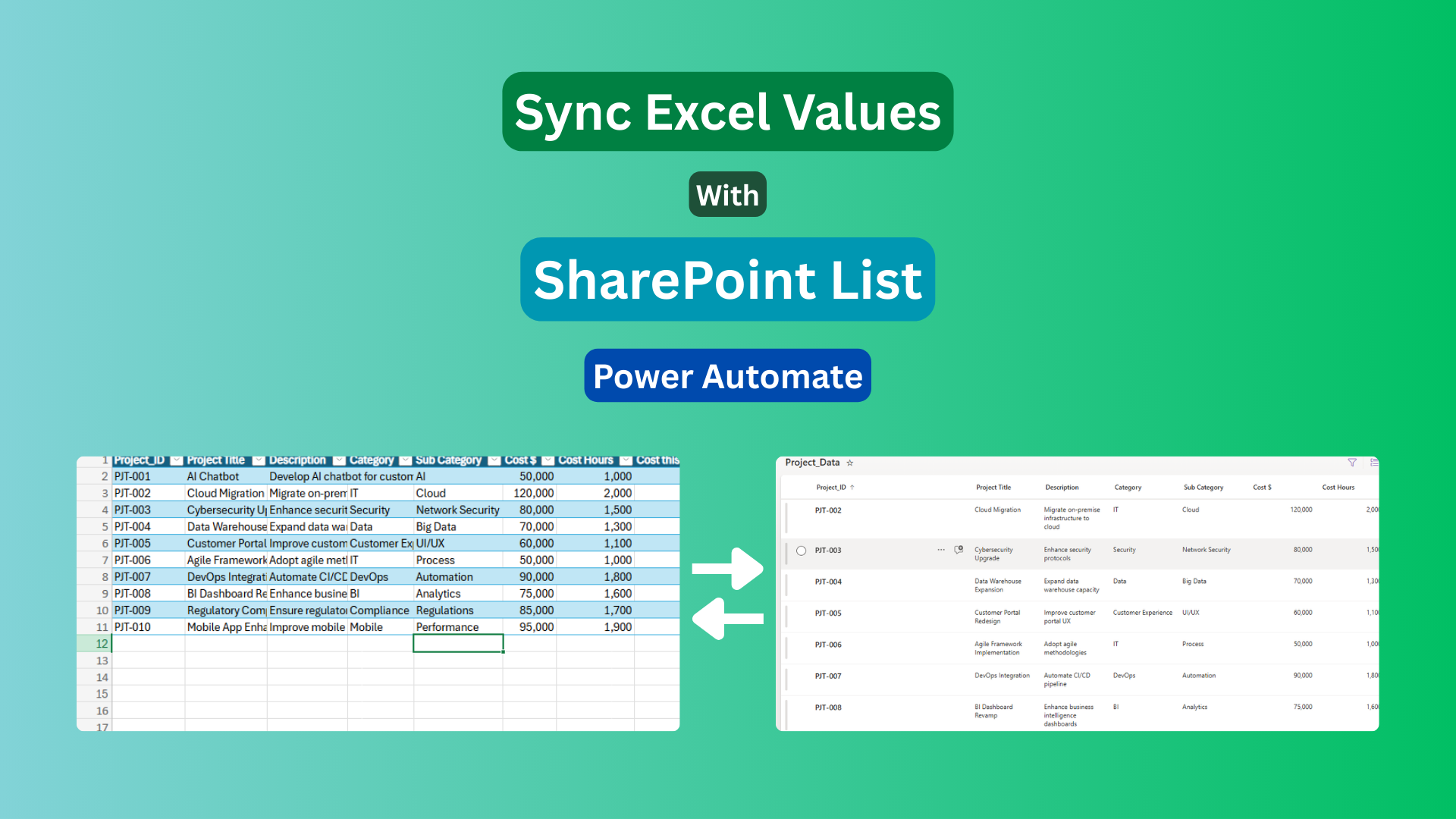
If you’re an IT professional or Microsoft 365 developer managing large-scale data operations, you’ve likely faced the challenge of keeping Excel files in sync with SharePoint lists — especially when those files contain tens of thousands of rows.
This guide walks you through a production-ready Power Automate solution to sync Excel with SharePoint — supporting up to 100,000 records — using pagination and a scalable parent–child flow architecture with built-in failure tracking.
By the end, you’ll have a fully automated flow that:
- Creates new SharePoint list items when a record doesn’t exist (Insert)
- Updates existing SharePoint items when a matching record is found (Update)
- Processes large Excel files with up to 100K+ rows
- Tracks failed records using an
unsuccessfulFilesarray - Runs on a schedule using a reliable parent–child flow pattern
Table of Contents
Business Scenario: Project Report Sync – Excel with SharePoint Using Power Automate
A company manages a Project Tracker Excel file stored in a SharePoint Document Library. The tracker is updated daily by multiple team members and needs to stay in sync with a SharePoint list used by managers and Power BI dashboards.
Core Requirements:
- If ProjectID exists in SharePoint → Update the item
- If ProjectID does not exist → Create a new item
- Process up to 1 lakh rows without timeouts
- Continue processing even if some rows fail
- Run automatically on a set schedule
Tools and Prerequisites
- Microsoft Excel (stored in SharePoint Document Library or OneDrive for Business)
- SharePoint Online List
- Power Automate
- Microsoft 365 license with Power Automate access
Step 1: Prepare Your Excel File
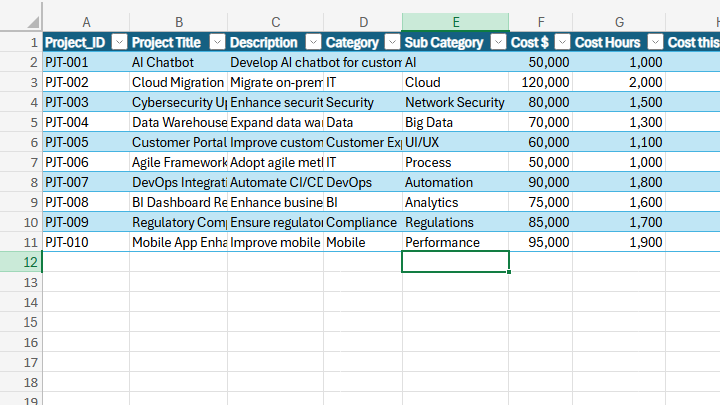
Power Automate can only read Excel data formatted as a named Table — this is the most common setup mistake.
- Store the Excel file in a SharePoint Document Library
- Select data and press Ctrl + T
- Ensure a unique column such as ProjectID
- Avoid merged cells and blank headers
Step 2: Create the SharePoint List
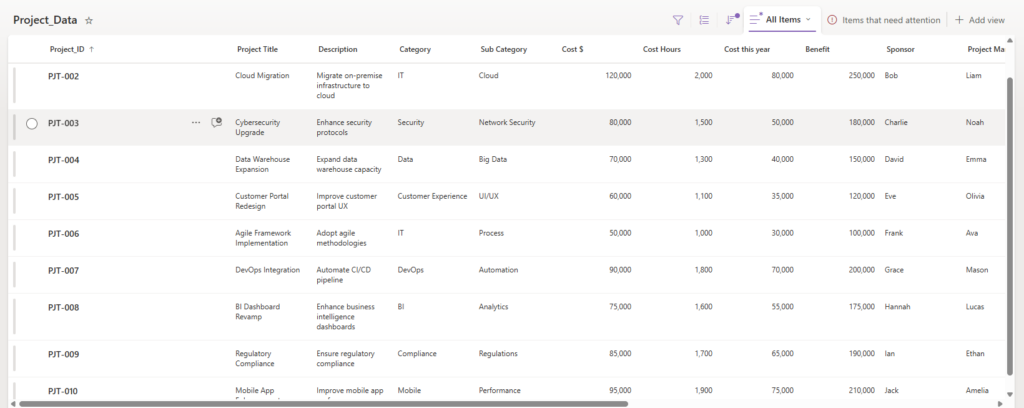
Create a SharePoint list with matching columns.
Set ProjectID as Single Line of Text and treat it as your logical unique key.
Step 3: Flow Architecture — Why Parent–Child Matters
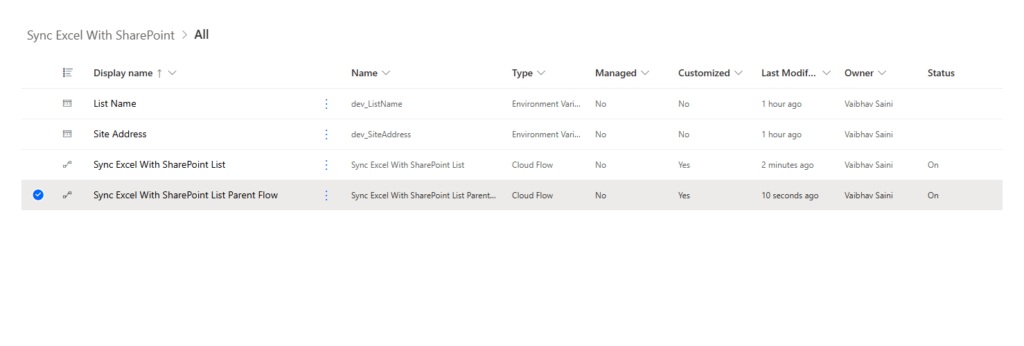
If we want pagination up to 100000, we must use a Manually Trigger a Flow action.
The Recurrence trigger does not allow pagination above 5000.
Architecture:
- Parent Flow → Recurrence trigger
- Child Flow → Manual trigger + business logic
- Parent calls child
This improves reliability and allows better error handling.
Step 4: Create the Child Flow — Excel with Pagination

Trigger: Manually trigger a flow
Action: Excel Online → List rows present in a table
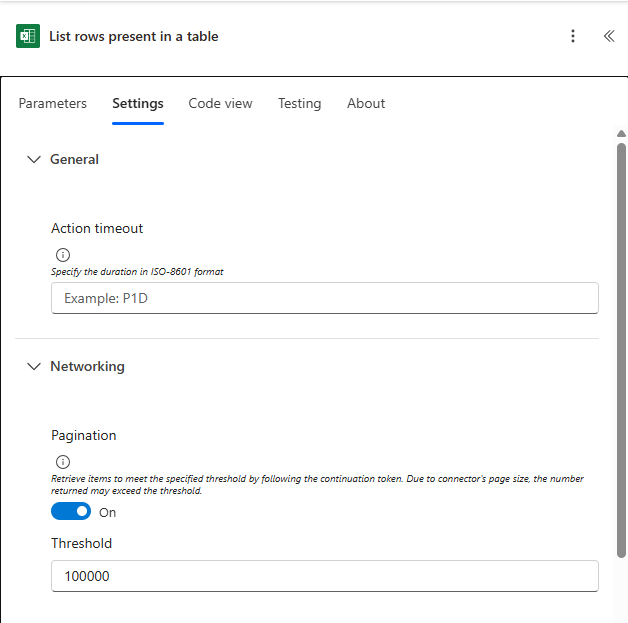
Enable Pagination (Critical)
- Click three dots (⋯)
- Select Settings
- Enable Pagination
- Set Threshold to 100000
Without this, only 256 rows will be processed.
Step 5: Initialize Failure Tracking Variable
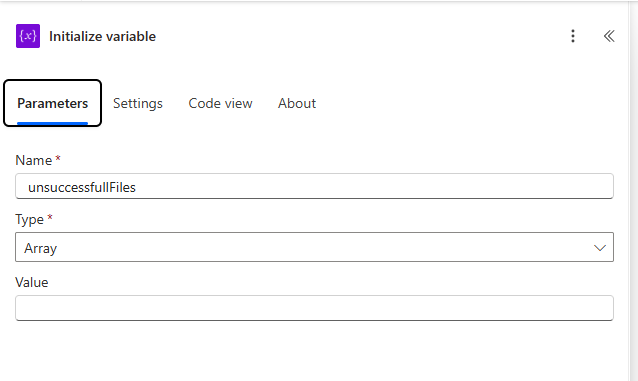
Before the Apply to each loop, add:
Initialize variable
Name:
unsuccessfulFilesType:
ArrayThis will store failed ProjectIDs during execution.
Step 6: Apply to Each — Loop Through Excel Rows
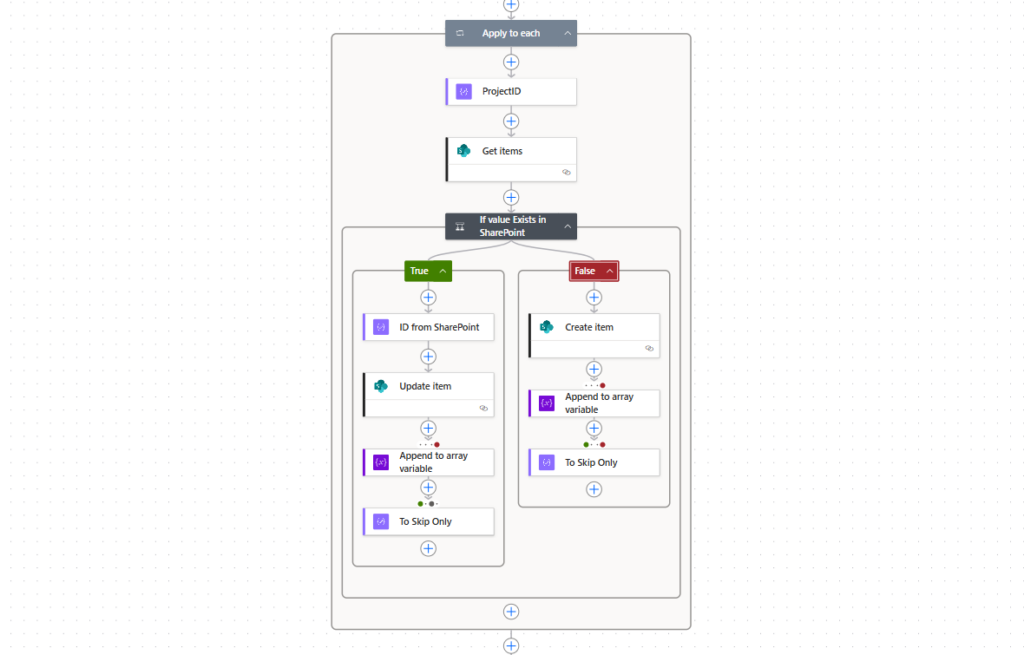
Each Excel row is processed individually.
You may enable concurrency up to 50 for better performance.
Step 7: Check If Record Exists
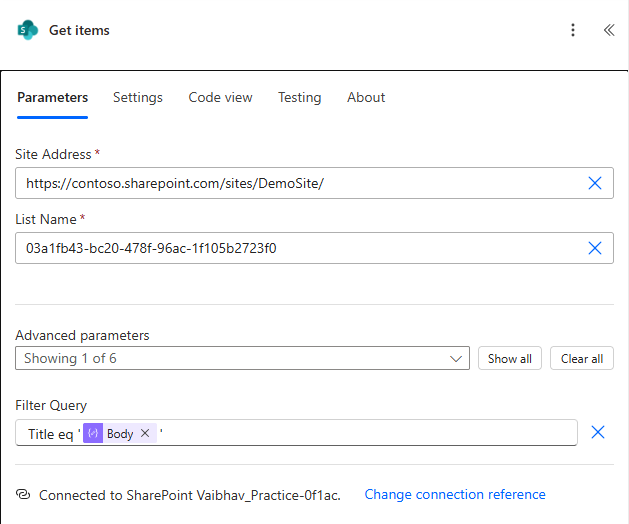
Action:
SharePoint → Get items
Filter Query:
ProjectID eq 'dynamic ProjectID from Excel'Step 8: Condition — Insert or Update (Upsert Logic)
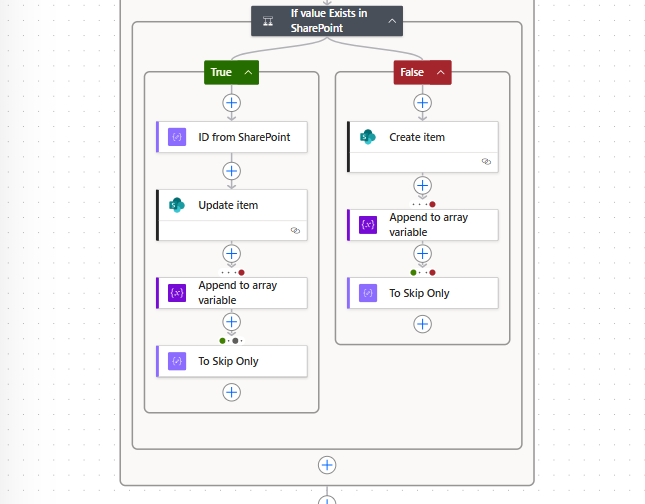
Expression:
length(body('Get_items')?['value'])If > 0 → Record Exists
- Update item
If = 0 → Record Does Not Exist
- Create item
Step 9: Capture Failures Without Stopping Flow
Inside both Update and Create branches:
Use Configure Run After:
If Update or Create fails:
Add action:
Append to array variable → unsuccessfulFiles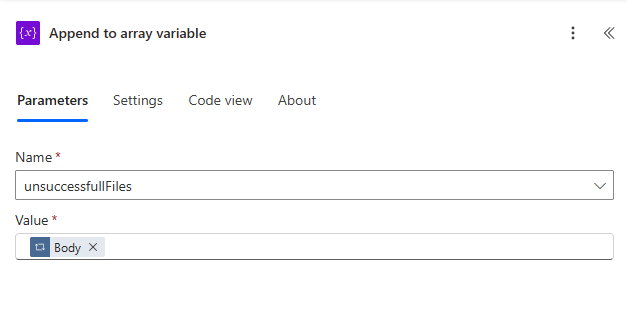
Append:
items('Apply_to_each')This ensures:
- Flow continues processing remaining rows
- Failed records are captured
- No silent data loss
- No complete flow termination
This makes the solution enterprise-ready.
Step 10: Respond to Parent Flow
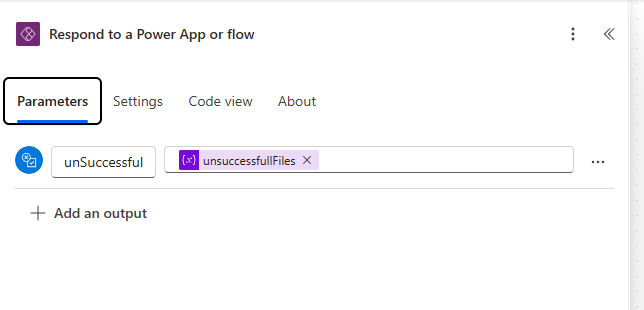
After the loop completes:
Use:
Respond to a Power App or Flow
Return:
- Total records processed
- Length of
unsuccessfulFiles - Array of failed ProjectIDs
This enables monitoring and logging.
Step 11: Create Parent Flow — Recurrence
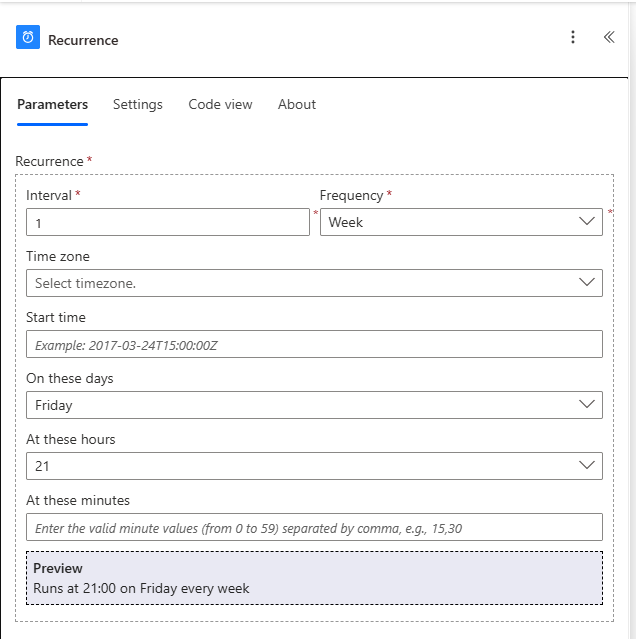
Create a second flow:
Trigger → Recurrence
Add action:
Run a Child Flow
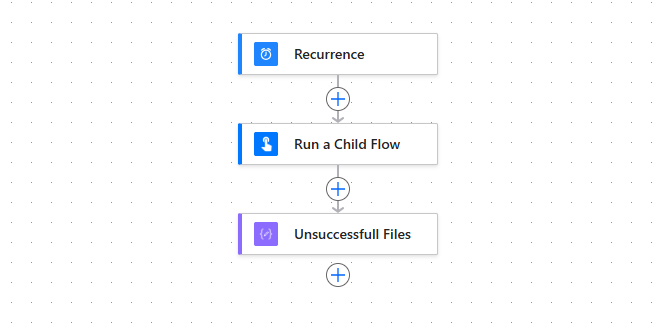
Select the child flow created earlier.
The parent flow only schedules execution.
Common Issues & Troubleshooting
Excel not formatted as Table
Power Automate cannot read raw cell ranges.
Pagination not enabled
Default limit is 256 rows.
Duplicate ProjectIDs
Ensure uniqueness.
OData filter error
Use single quotes around string values.
Permission errors
Ensure Contributor access.
What Happens If a Row Fails?
With the unsuccessfulFiles array implemented:
- Flow does NOT stop
- Failed rows are tracked
- You can log them into another SharePoint list
- You can send email summary after completion
- You can retry only failed records later
This is critical for large enterprise datasets.
Business Benefits
- Eliminates manual sync
- Handles up to 100,000 rows
- Continues execution even if some records fail
- Enables reporting in Power BI
- Provides audit trail
- Parent-child architecture improves maintainability
- Failure tracking improves production stability
FAQ
Can Power Automate sync more than 100,000 rows?
Yes, with pagination enabled and threshold set to 100000.
Why use unsuccessfulFiles array?
To prevent full flow failure and capture problematic records for later review.
What happens if 10 rows fail out of 50,000?
The other 49,990 will still process successfully. Failed rows will be stored in the array.
Why use parent-child architecture?
Because Recurrence trigger limits pagination to 5000. Manual trigger in child flow allows higher pagination threshold.
Conclusion
Excel is flexible for data entry, but SharePoint provides governance and scalability.
By combining:
- Pagination up to 100,000
- Parent–Child architecture
- Upsert logic
- Failure tracking with
unsuccessfulFiles
You can build a production-grade automation system capable of handling enterprise-scale data reliably.
If your organization is managing large Excel trackers and struggling with reliability, duplication, or performance issues, Ratnadhya can help you design a scalable Microsoft 365 automation solution tailored to your business needs.
Need Help?
Just drop a message to us and let us be your helping hand.
Leave a Reply