
If you’ve worked with Power Automate and SharePoint, you’ve probably hit this wall:
The flow works fine… until the list grows.
Then you see timeouts, throttling, or incomplete data.
This happens because of the SharePoint 5,000 item list view threshold — and most suggested fixes online either don’t scale or break in production.
In this article, I’ll walk through a real, production-ready approach to retrieve tens of thousands of SharePoint items using Power Automate, ID-based batching, and Apply to each concurrency.
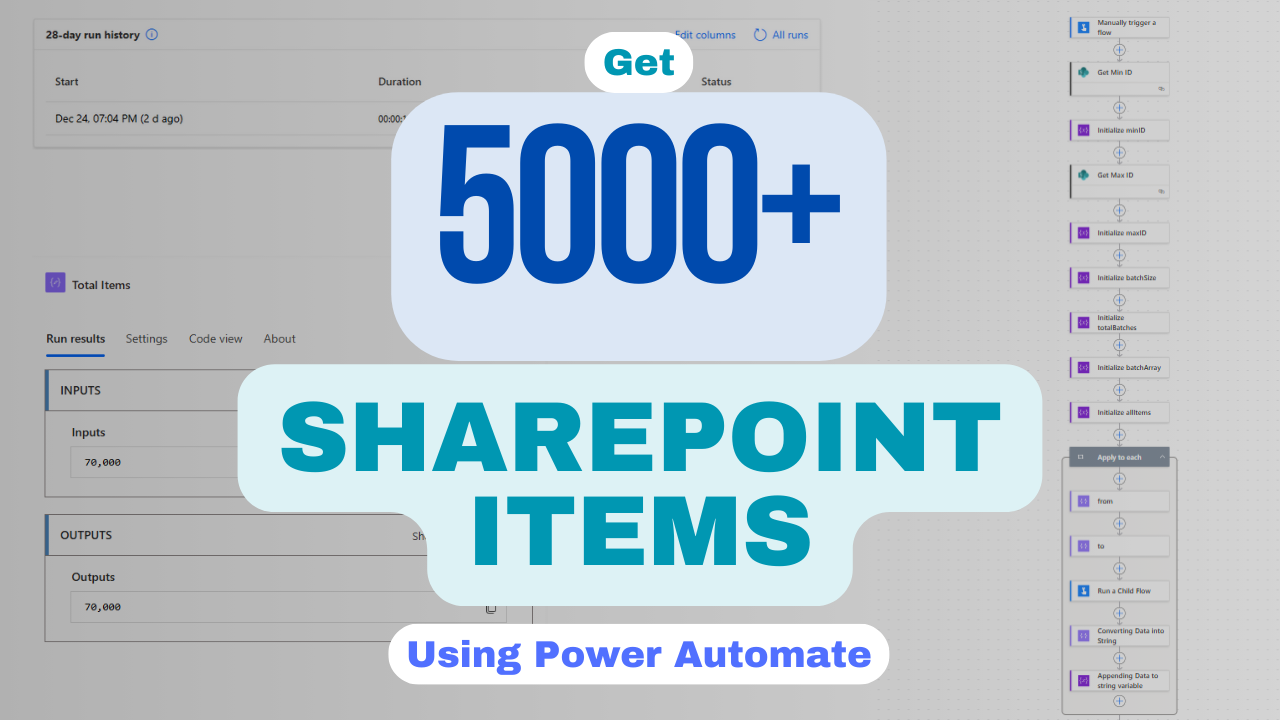
This is not a theory — this exact approach retrieved ~70,000 items in ~16 seconds.
Table of Contents
Understanding the Real Problem
First, an important clarification:
- ❌ SharePoint does not limit how much data you can store
- ✅ It limits how queries are executed
Power Automate uses SharePoint APIs under the hood.
If a query scans too many items without an indexed filter, SharePoint blocks or throttles it.
So the problem is query design, not data size.
Our Scalable Architecture (High Level)
The solution uses four key ideas:
- ID-based batching (ID is indexed by default)
- Apply to each with concurrency enabled
- Parent–child flow architecture
- Controlled aggregation of results
This keeps every SharePoint query small, indexed, and fast, while allowing Power Automate to work in parallel.
Download complete solution zip here:
Step 1: Get the Minimum and Maximum ID
Instead of guessing ranges, the flow dynamically finds boundaries.
Get Min ID:
/_api/web/lists/getbytitle('ListName')/items?$orderby=Id asc&$top=1&$select=Id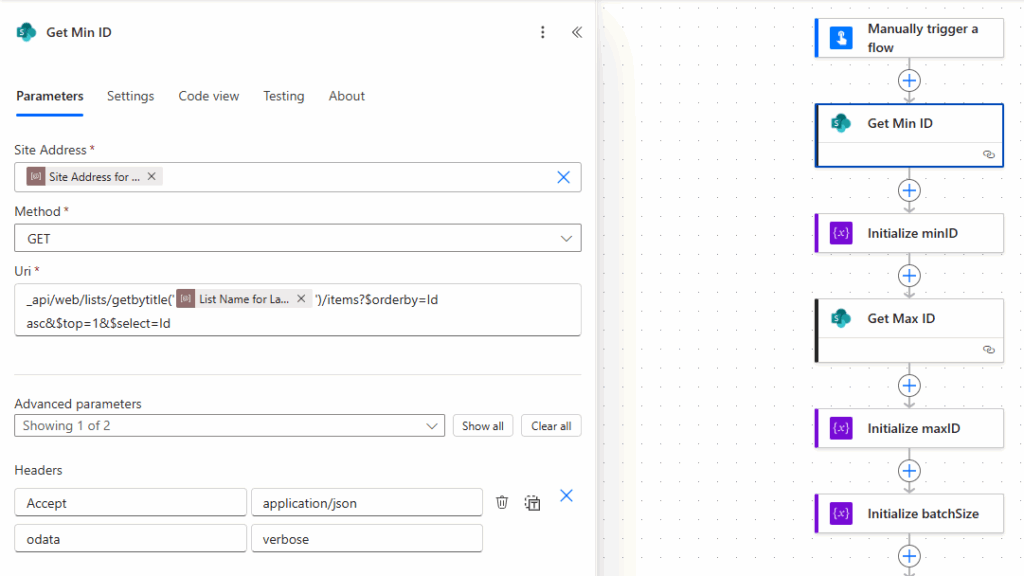
Get Max ID
/_api/web/lists/getbytitle('ListName')/items?$orderby=Id desc&$top=1&$select=Id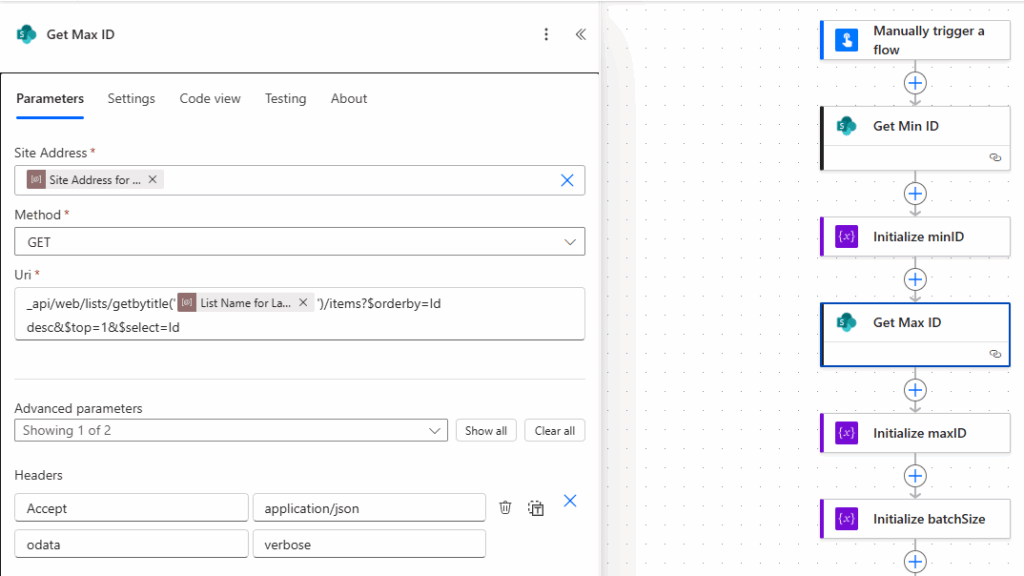
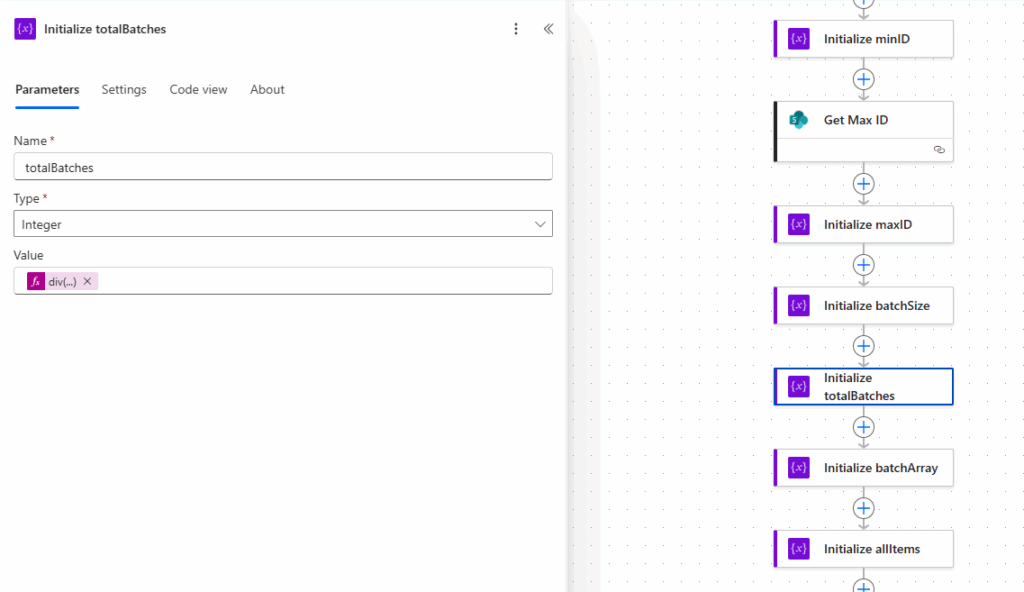
Step 2: Calculate Batch Size and Total Batches
A safe batch size is chosen (for example, 500).
Total Batches Formula
div(
  add(
    sub(maxID, minID),
    batchSize
  ),
  batchSize
)
This ensures:
- No gaps
- No overlaps
- No missing items
Then a batch index array is generated:
range(0, totalBatches)This produces:
[0, 1, 2, 3, ...]Step 3: Apply to Each with Concurrency (Critical Part)
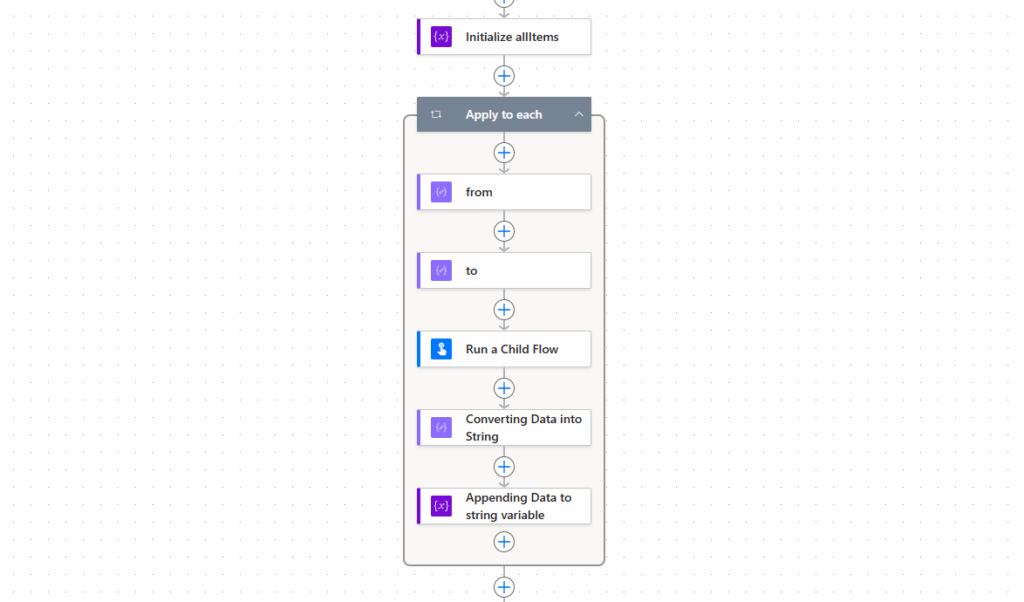
This is where performance comes from.
The Apply to each loop:
- Iterates over batch indexes
- Has Concurrency Control enabled
- Runs multiple batches in parallel
Concurrency Settings
- Enabled: ✅
- Degree of Parallelism: 50
This allows Power Automate to process multiple ID ranges at the same time instead of sequentially.
Step 4: Calculate from and to IDs per Batch
From
add(minID, mul(items('Apply_to_each'), batchSize))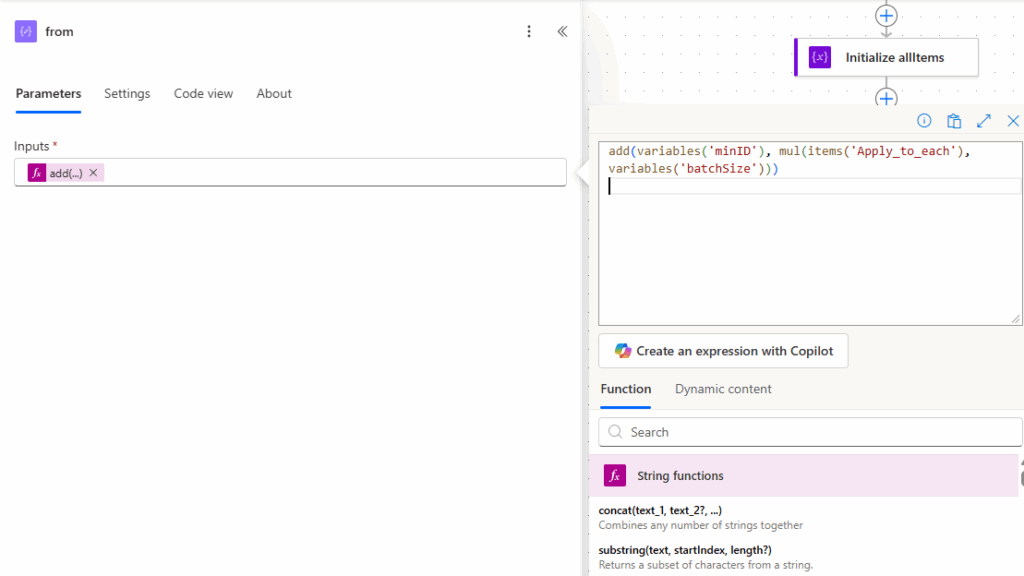
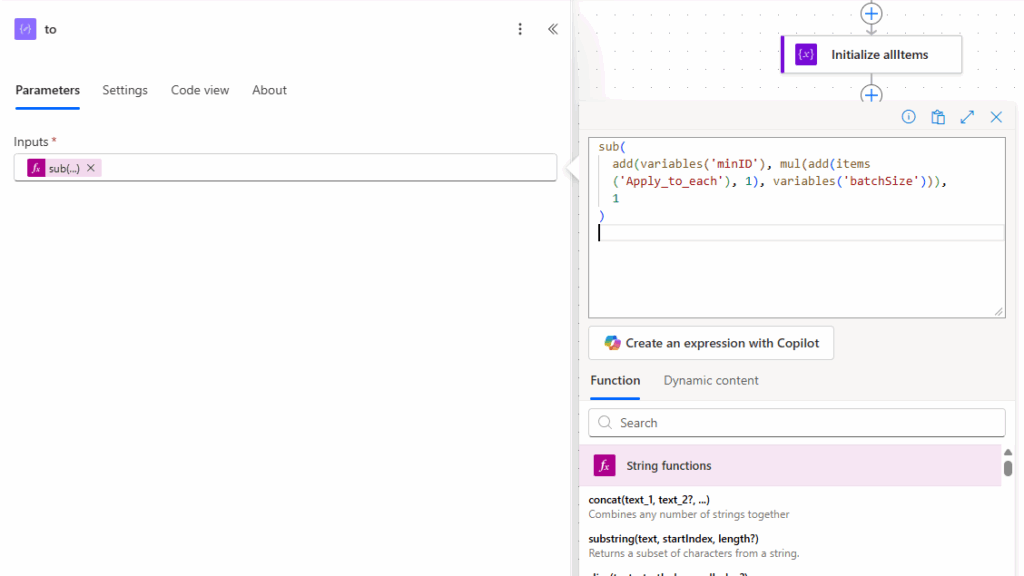
To
sub(
  add(minID, mul(add(items('Apply_to_each'), 1), batchSize)),
  1
)
This creates ranges like:
1–500
501–1000
1001–1500
Each range is:
- Predictable
- Indexed
- Under threshold
Step 5: Child Flow – Data Retrieval Layer
Each parallel iteration triggers a child flow.
Inside the child flow:
- Action: Get items
- Pagination: Enabled
- Threshold: 5000
- Filter Query:
ID ge {from} and ID le {to}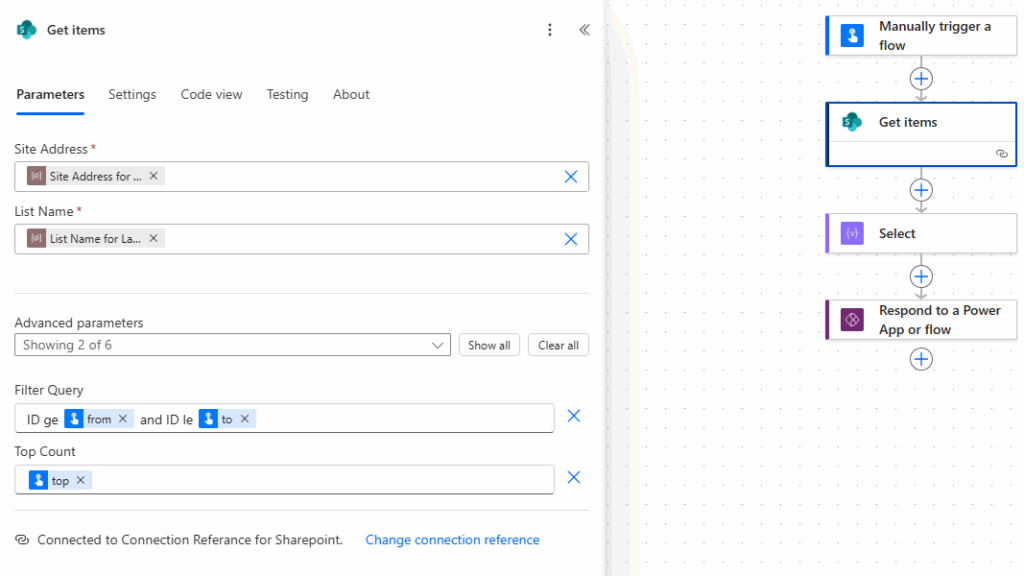
Why child flows matter:
- Cleaner architecture
- Easier retries
- Better fault isolation
- Improved parallel execution
Step 6: Returning and Aggregating Data Safely
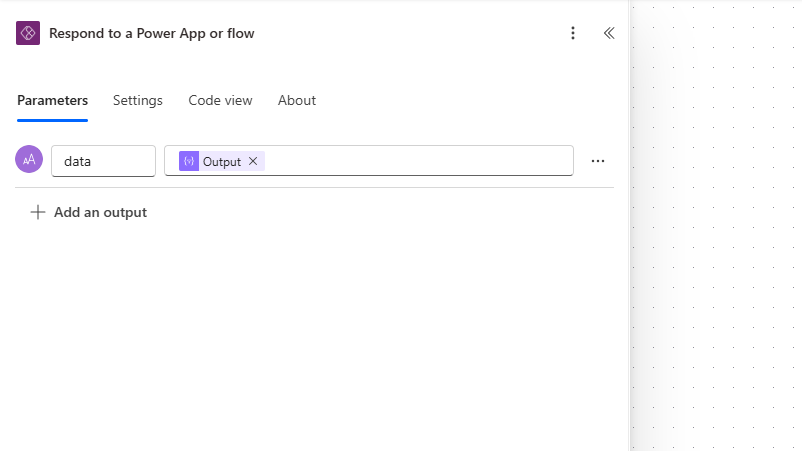
Each child flow returns its data to the parent.
Because large arrays can hit limits, data is:
Converted to string
string(json(body('Run_a_Child_Flow')?['data']))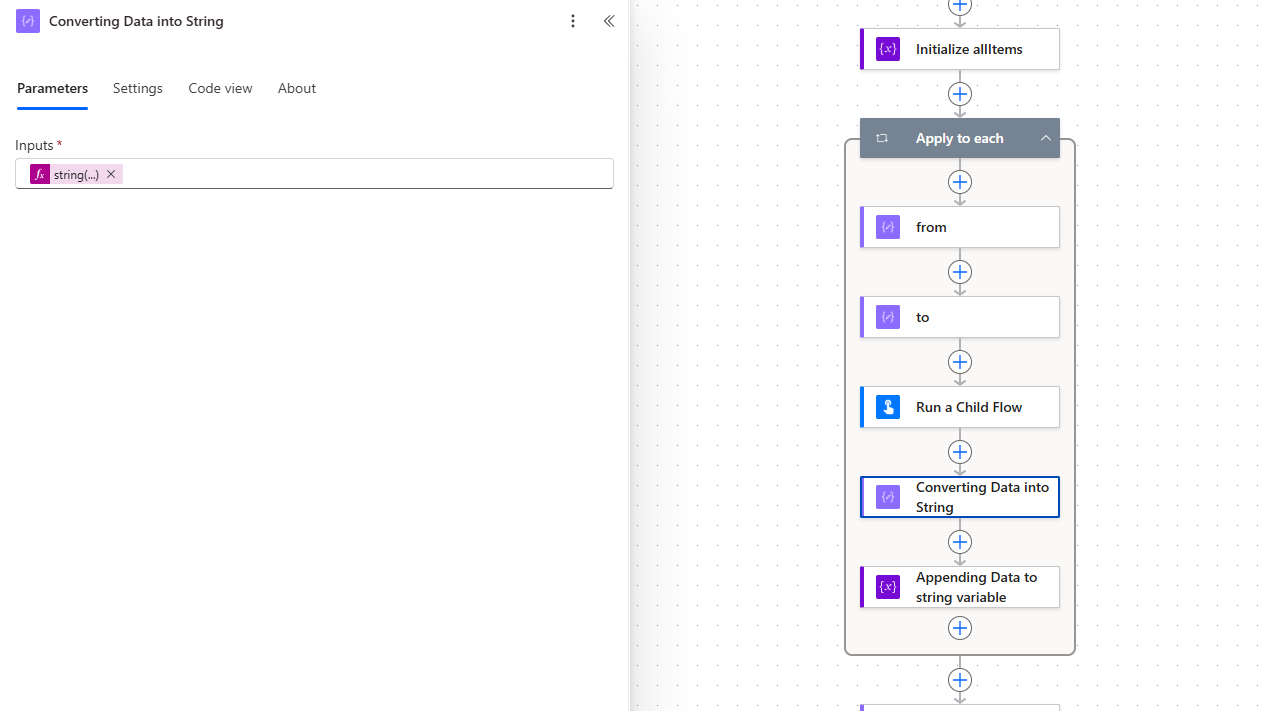
Appended to a master string variable
string(json(body('Run_a_Child_Flow')?['data']))Cleaned and formatted back into valid JSON
substring(variables('allItems'), 0, length(variables('allItems')))Final formatting:
json(
  concat(
    '[',
    replace(allItems, '}{', '},{'),
    ']'
  )
)
This avoids:
- Array append limits
- Partial failures
- Performance degradation
Real Performance Result
~70,000 SharePoint items retrieved in ~16 seconds
No throttling
No missing data
No retries
No hacks
This was achieved using:
- Indexed ID filters
- Apply to each with concurrency
- Parallel child flows
When Should You Use This Approach?
Use this pattern when:
- Lists exceed 5,000 items
- You need all items, not filtered subsets
- Performance and reliability matter
- The flow runs in production
For smaller or filtered datasets, simpler approaches may be enough — but for scale, this pattern is reliable.
Final Thoughts
The SharePoint 5,000 item limit is not something to “work around”.
It’s something to design for.
By combining:
- ID-based batching
- Apply to each concurrency
- Parallel child flows
You can build Power Automate solutions that scale confidently into tens or hundreds of thousands of items.
Need help in a complex Microsoft 365 problem, let us help you fix that.
Drop a message to us

Leave a Reply